
How to Import MT5 Trade History Into a Trading Journal (Step-by-Step)
Three ways to import your MetaTrader 5 trades into a trading journal: HTML report, Excel/XLSX, or EA Auto-Sync for fully automatic trade capture. Works with any MT5 broker.
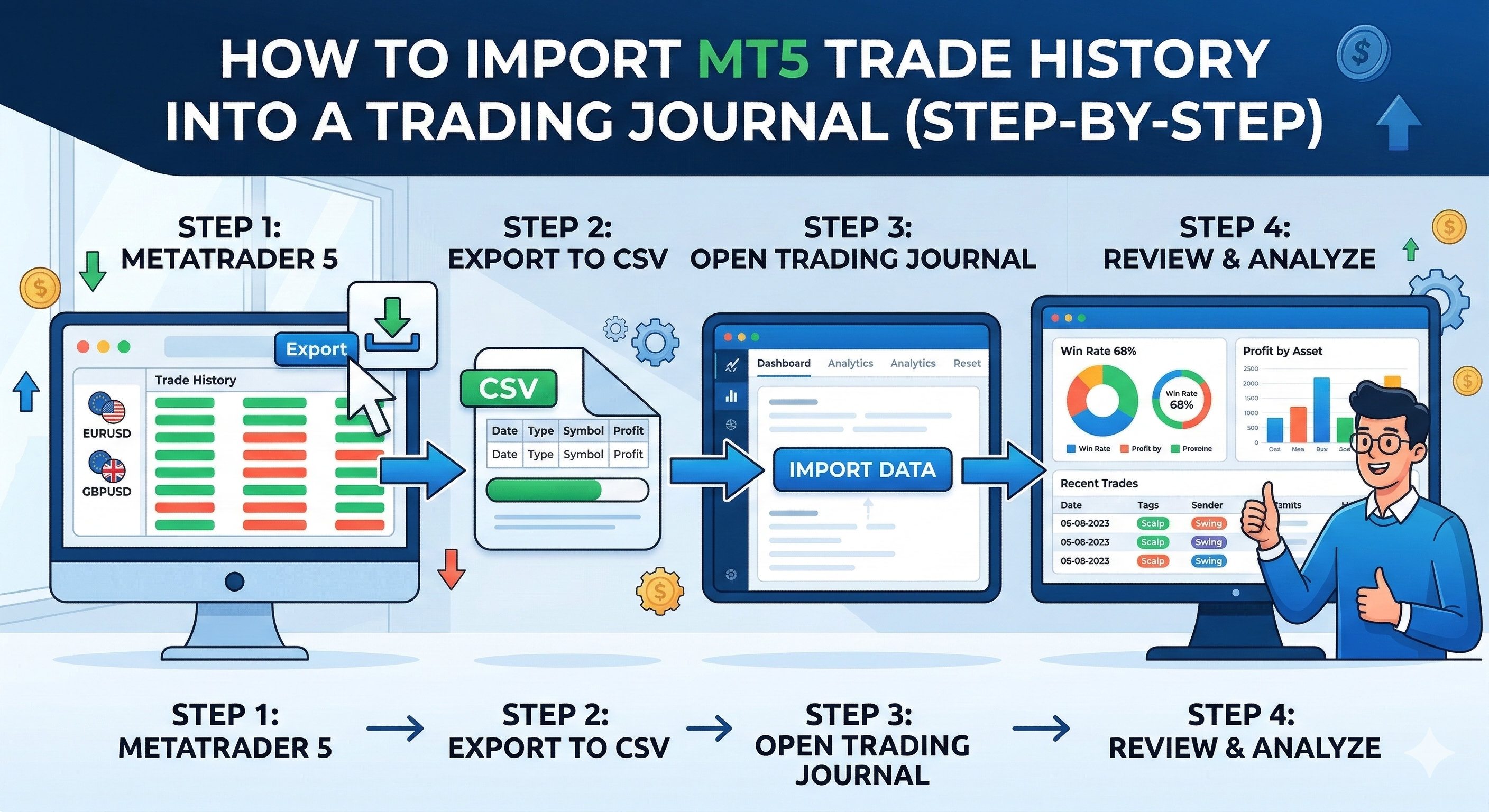
Why Most Traders Never Properly Review Their MT5 History
MetaTrader 5 stores every trade you've ever made. But browsing the built-in history tab gives you no analytics, no charts, and no way to add notes or screenshots. The data is there — it's just trapped in the platform.
Importing your MT5 trade history into Treydly takes about 2 minutes and unlocks full performance analytics on every closed trade.
Method 1: Export as HTML Report (Recommended)
This is the fastest method and preserves all trade details.
- Open MetaTrader 5 and go to the History tab (bottom panel)
- Right-click anywhere in the history list and select Report
- Choose Open or Save as HTML — save the file to your desktop
- Log in to Treydly and go to Import Trades → MT5 Import
- Upload the saved HTML file — Treydly parses it and imports all trades instantly
Method 2: Export as Excel or CSV
If you prefer a spreadsheet format:
- In MT5 History tab, right-click and select Save as Report
- Choose Excel (.xlsx) or CSV format
- Upload the file in Treydly under Import Trades → MT5 Import
Method 3: EA Auto-Sync (Automatic, No Exports Needed)
The easiest long-term option is EA Auto-Sync — a free Expert Advisor that sends each closed trade to your journal automatically, seconds after it closes. No manual exports ever again.
- In Treydly, open Import Trades → ⚡ EA Auto-Sync and click + Generate Token. Copy the token.
- Download TreydlySync.ex5 and place it in your MT5
MQL5/Expertsfolder - In MT5 go to Tools → Options → Expert Advisors and add
https://www.treydly.comto the list of allowed URLs - Drag TreydlySync onto any chart, paste your token in the input box, and click OK
- Done — every closed trade appears in your journal automatically
Note for prop firm traders: Some prop firms prohibit EAs — even read-only ones. Check your firm's rules before attaching the EA to a funded account. If EAs are not allowed, use Method 1 or Method 2 above instead.
What Data Gets Imported?
- Symbol/instrument name and trade direction (buy/sell)
- Lot size / position size
- Open time & close time
- Entry price & exit price
- Stop loss & take profit
- Gross profit, commission, swap, and net profit
- Trade comments
What About MT4 and cTrader?
Treydly supports full auto-sync and manual import for MT4 and cTrader too:
- MT4 — download TreydlySync_MT4.ex4,
place it in your
MQL4/Expertsfolder, and attach it to a chart with your token. Manual import via HTM report also supported. - cTrader — download TreydlySync_cBot.algo, import it under Automate → My Plugins, set your token in Parameters, and click Start. Manual import via HTM or XLSX also supported.
Works with all major brokers including Fusion Markets, Pepperstone, IC Markets, and more.
After Import: Your Statistics Are Ready Immediately
As soon as your trades are imported, Treydly calculates win rate, average R:R, Profit Factor, drawdown, and session-by-session performance — no setup required.
Track this in Treydly — free
Connect your MT5, MT4, or cTrader account, import your trade history, get all your statistics instantly.
Create Free Account